So glad you're here! You have ended up here because we have moved everything related to management systems and ISO certification from Cognite to AmpliFlow. The reason is simple: to clarify our offers and make it easier for you as a customer.
This guide explains in detail how permission management works for staff appraisals in AmpliFlow. Since the system uses a combination of roles AND personal relationships, it's important to understand exactly how these interact.
This guide is for you if you:
Are an administrator configuring permissions for staff appraisals
Are a manager wondering why you can or cannot see certain staff appraisals
Are responsible for HR and need to understand access control for staff appraisals
Need to troubleshoot permission issues in staff appraisals
After reading this guide, you will understand:
What roles exist and what they mean
How the reporting relationship ("Manager" field) affects access
Exactly which staff appraisals each role can view, create, and modify
How archiving and deletion work
Common scenarios and troubleshooting
Reading time: ~12 minutes
Contents
Permission system overview
Roles and their permissions
Reporting relationships (Manager field)
Viewing staff appraisals
Creating staff appraisals
Editing staff appraisals
Archiving staff appraisals
Deleting staff appraisals
Practical examples
Frequently asked questions
Troubleshooting
Permission system overview
The permission system for staff appraisals is more complex than other features in AmpliFlow because it combines:
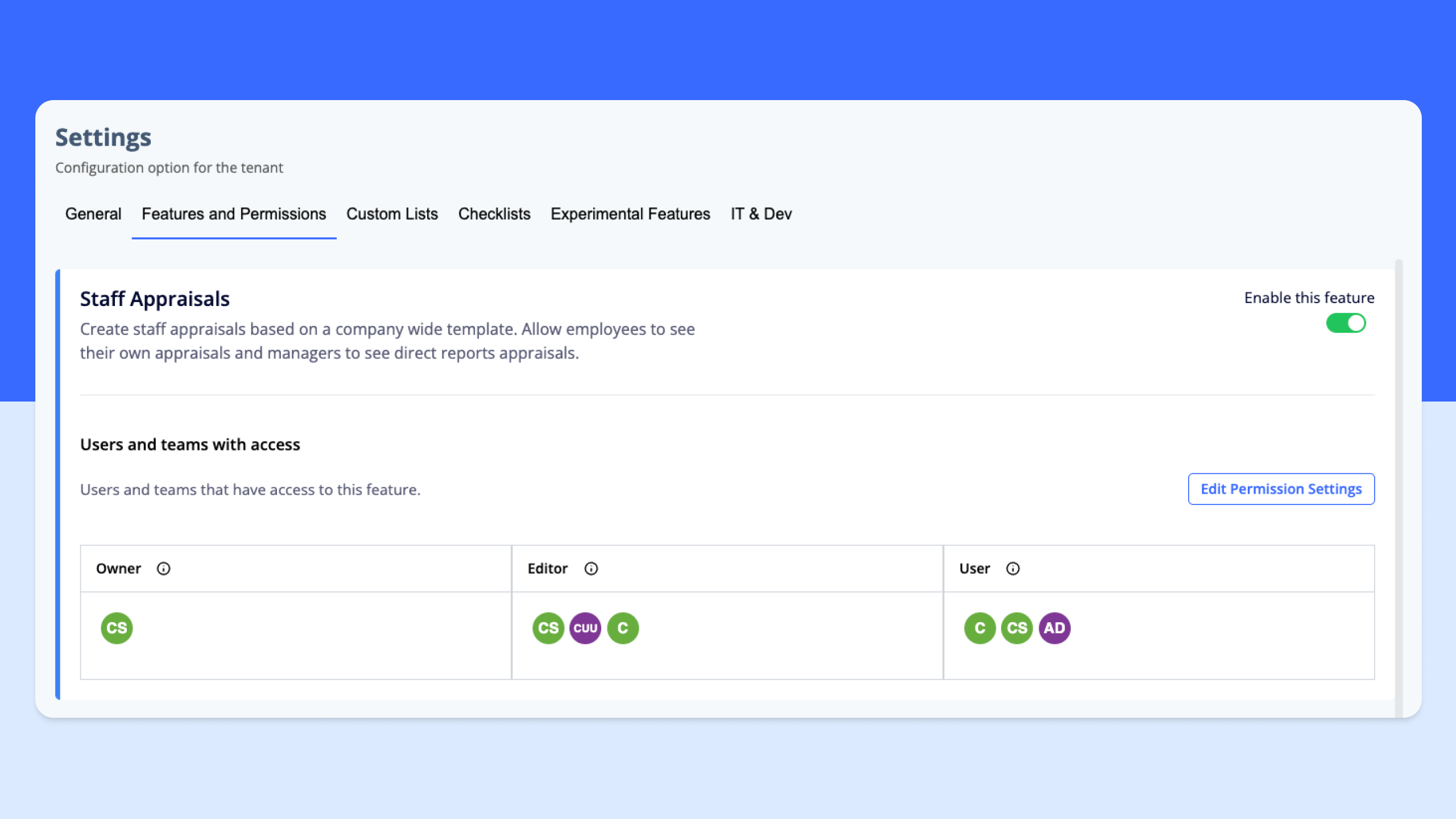
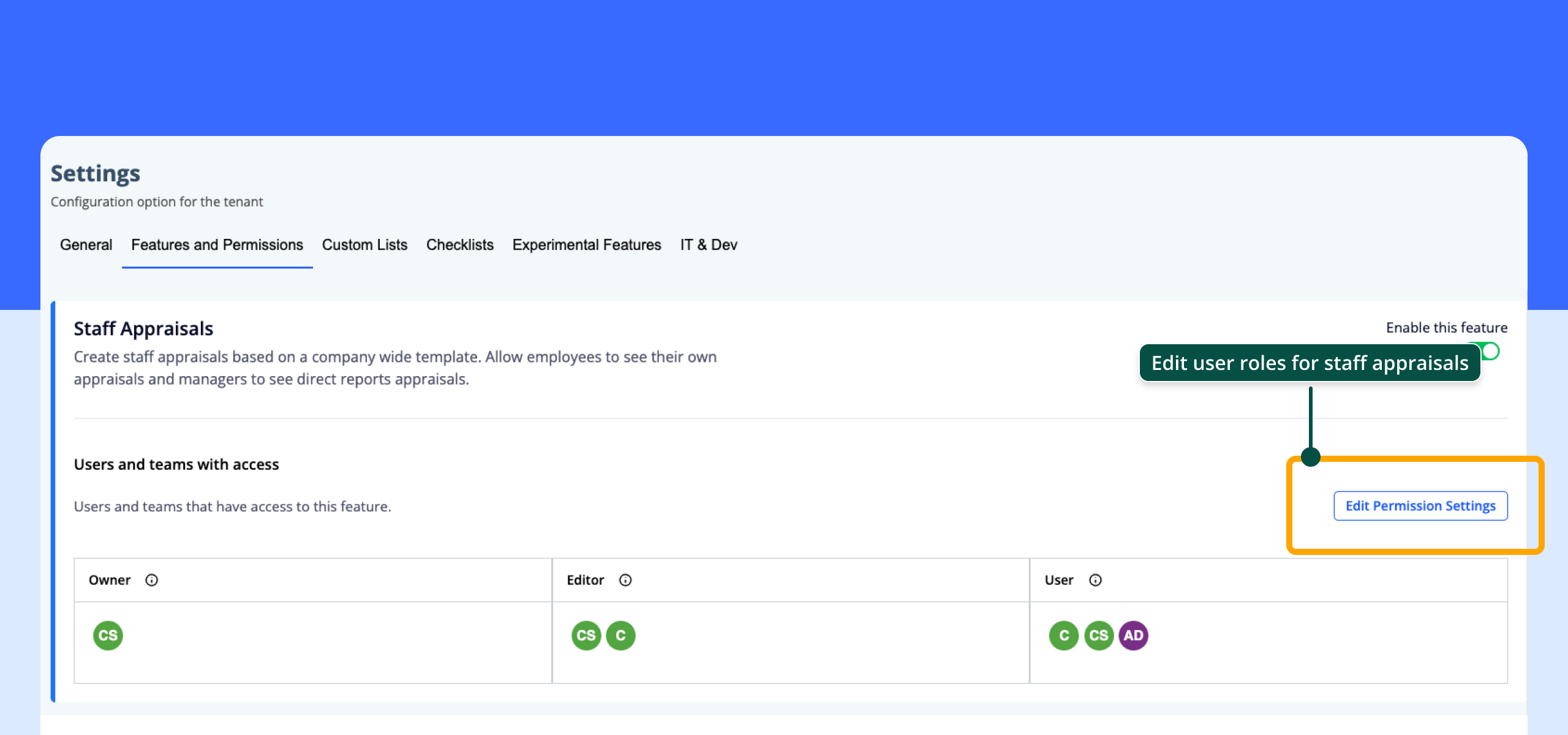
Roles - Traditional permission roles (Owner, Editor, User)
Personal relationships - Who manages whom (the "Manager" field in the user profile)
Ownership - Who the staff appraisal is about ("Subject") and who conducts it ("Appraising Manager")
Why is it so complex?
Staff appraisals contain sensitive personal information. Therefore, the system must ensure that:
Managers can see appraisals for their direct reports
Employees can see their own appraisals
HR/administrators can see all appraisals (if they have the right role)
No one can see appraisals they shouldn't have access to
The four questions the system asks
When you try to view or edit a staff appraisal, the system checks:
What role do you have? (Administrator, Owner, Editor, or User)
Is it your own appraisal? (You are the "Subject" of the appraisal)
Is it an appraisal for someone who reports to you? (The person under "Subject" has you as their "Manager")
Are you conducting the appraisal? (You are set as "Appraising Manager")
Based on the answers, you get different permissions.
Roles and their permissions
There are four roles that control access to staff appraisals:
1. Administrator
Permissions:
✅ View all staff appraisals
✅ Create staff appraisals for anyone
✅ Edit all staff appraisals
✅ Archive all staff appraisals
✅ Delete archived staff appraisals
Use case:System administrators, superusers. Have complete control.
2. Owner
Permissions:
✅ View all staff appraisals
✅ Create staff appraisals for anyone
✅ Edit all staff appraisals
✅ Archive all staff appraisals
❌ Delete staff appraisals (Administrator only)
Use case:HR managers, HR directors. Full access to all appraisals but cannot delete.
3. Editor
Permissions:
✅ View all staff appraisals
✅ Create staff appraisals for anyone
✅ Edit all staff appraisals
✅ Archive all staff appraisals
❌ Delete staff appraisals (Administrator only)
Use case:HR team, HR administrators. In practice, the same permissions as Owner.
Note: Owner and Editor have identical permissions. The difference is semantic - Owner indicates higher responsibility level.
User
Limited permissions - depending on relationships:
Can view:
✅ Own staff appraisals (where you are the "Subject")
✅ Staff appraisals for people who report directly to you
✅ Staff appraisals where you are the "Appraising Manager"
✅ Archived and active appraisals (for all the above)
❌ Other staff appraisals
Can create:
✅ Staff appraisals for themselves
✅ Staff appraisals for people who report directly to them
❌ Staff appraisals for other people
Can edit:
✅ Own staff appraisals
✅ Staff appraisals for people who report directly to them
✅ Staff appraisals where you are the "Appraising Manager"
❌ Other staff appraisals
Cannot edit:
❌ The "Who" field (Subject) - this is disabled for User role
Can archive:
✅ Own staff appraisals
✅ Staff appraisals where you are the "Subject"
✅ Staff appraisals where you are the "Appraising Manager"
✅ Staff appraisals for people who report directly to you
❌ Other staff appraisals
Can delete:
❌ No staff appraisals (Administrator only)
Use case:Managers, team leaders. Can manage their own appraisals, appraisals for their direct reports, and appraisals where they are the appraising manager.
Reporting relationships (Manager field)
What is the "Manager" field?
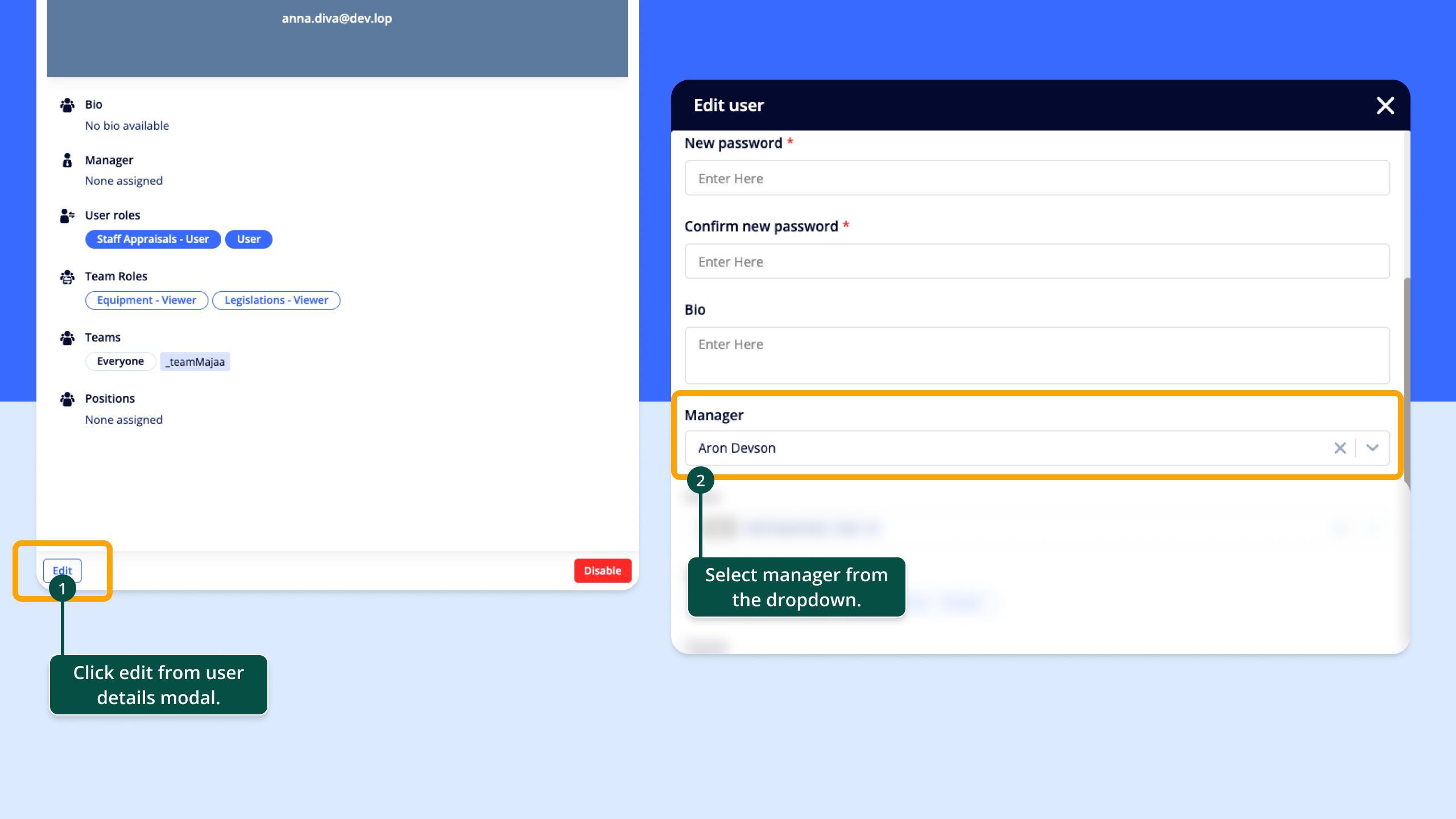
Each user in AmpliFlow can have a "Manager" field in their user profile. This creates a reporting relationship.
Example:
Anna has "Manager" = Lisa
David has "Manager" = Lisa
Lisa has "Manager" = (empty)
This means that Anna and David report to Lisa.
How do you set the "Manager" field?
Go to Settings > Users
Click on a user to edit
Select a manager in the "Manager" field
Save
Why is the "Manager" field important for staff appraisals?
The "Manager" field automatically controls which staff appraisals a user with the User role can see and edit.
Lisa (with the User role) can:
Create staff appraisals for Anna
Create staff appraisals for David
View and edit Anna's and David's staff appraisals
Anna (with the User role) can:
Create staff appraisals for herself
View her own staff appraisals
NOT see David's staff appraisals (they share a manager but are not related)
Important things to know about reporting relationships
🔹 Only direct reporting counts - If Anna reports to Lisa, and Lisa reports to Karl, Karl CANNOT automatically see Anna's staff appraisals (if Karl only has the User role).
🔹 A user can have multiple "direct reports - "Lisa can have 10 people who have her as their "Manager". She can see all of their staff appraisals.
🔹 A user can only have ONE manager - Anna cannot have both Lisa and Karl as "Manager" simultaneously.
🔹 No manager = no one reporting - If no one has "Manager" set to Anna, Anna (with the User role) can only see her own staff appraisals.
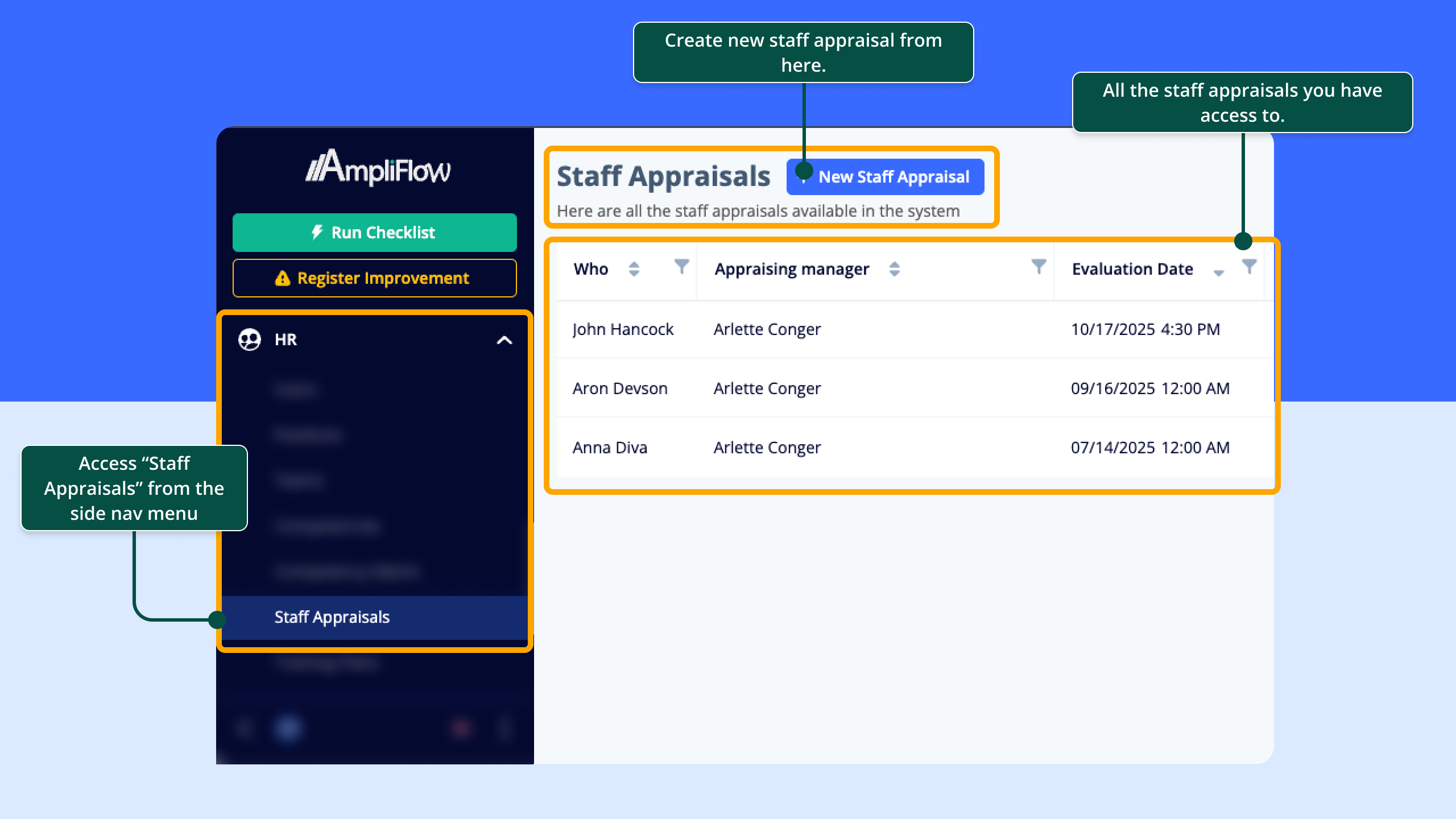
Viewing staff appraisals
Administrator, Owner, Editor
Can see:
✅ All staff appraisals in the entire system
✅ Archived and active appraisals
✅ Regardless of who is "Subject" or "Appraising Manager"
Filtering:No automatic filters are applied. The list shows all appraisals.
User
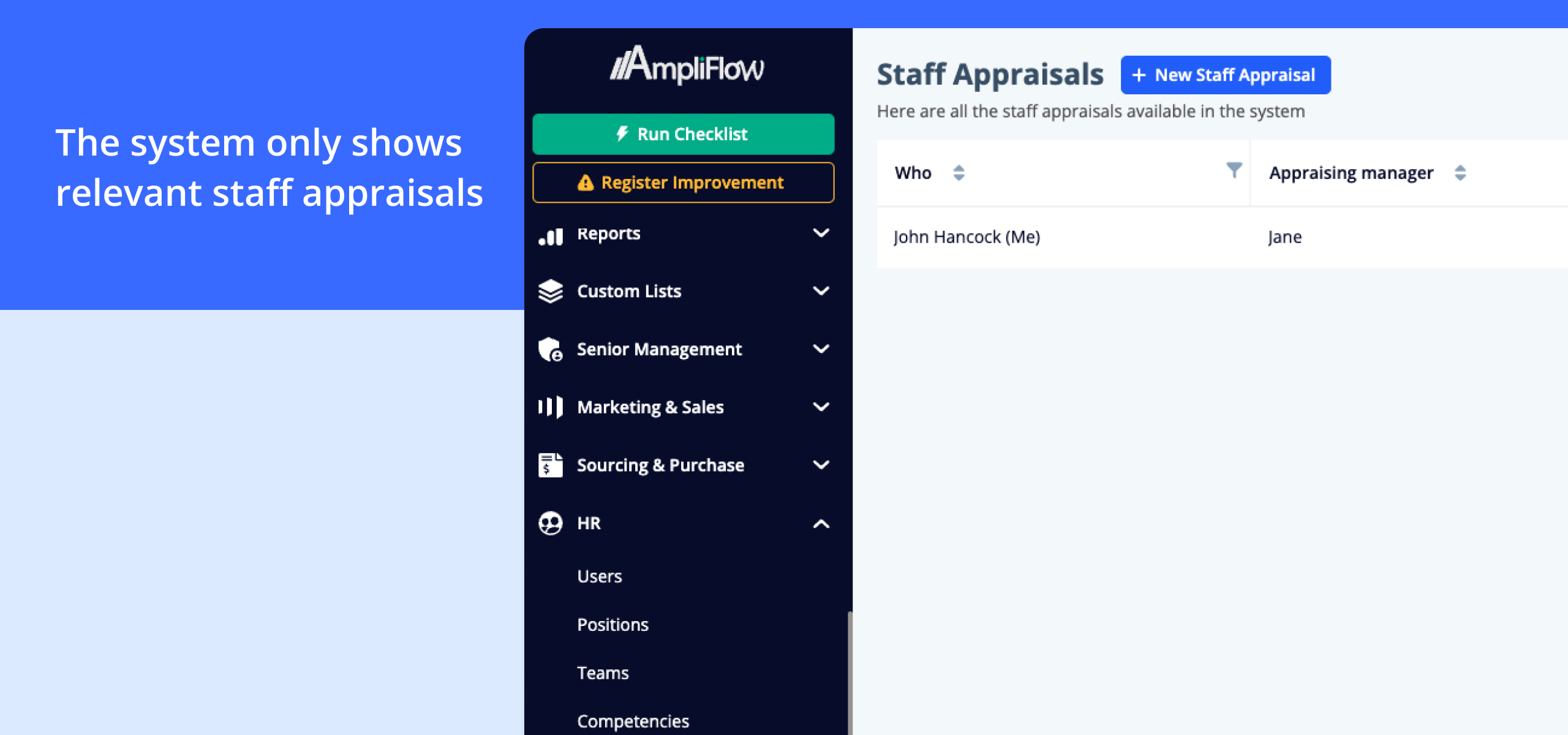
Can see:
✅ Staff appraisals where you are the "Subject"
✅ Staff appraisals for people who have you as their "Manager"
✅ Staff appraisals where you are the "Appraising Manager"
✅ Archived and active appraisals (for all the above)
Cannot see:
❌ Staff appraisals for other people
❌ Staff appraisals where neither you nor your direct reports are involved
How does filtering work?The system automatically shows only staff appraisals where you are involved in one of the following ways:
You are the person the appraisal is about ("Subject")
The person the appraisal is about has you as their manager
You are the person conducting the appraisal ("Appraising Manager")
No role
If you don't have any of the roles (Administrator, Owner, Editor, or User):
❌ You see no staff appraisals at all
❌ You cannot access the feature
❌ You cannot create, edit, or archive staff appraisals
Creating staff appraisals
Administrator, Owner, Editor
Can create:
✅ Staff appraisals for anyone in the system
✅ No restriction on who can be selected as "Subject"
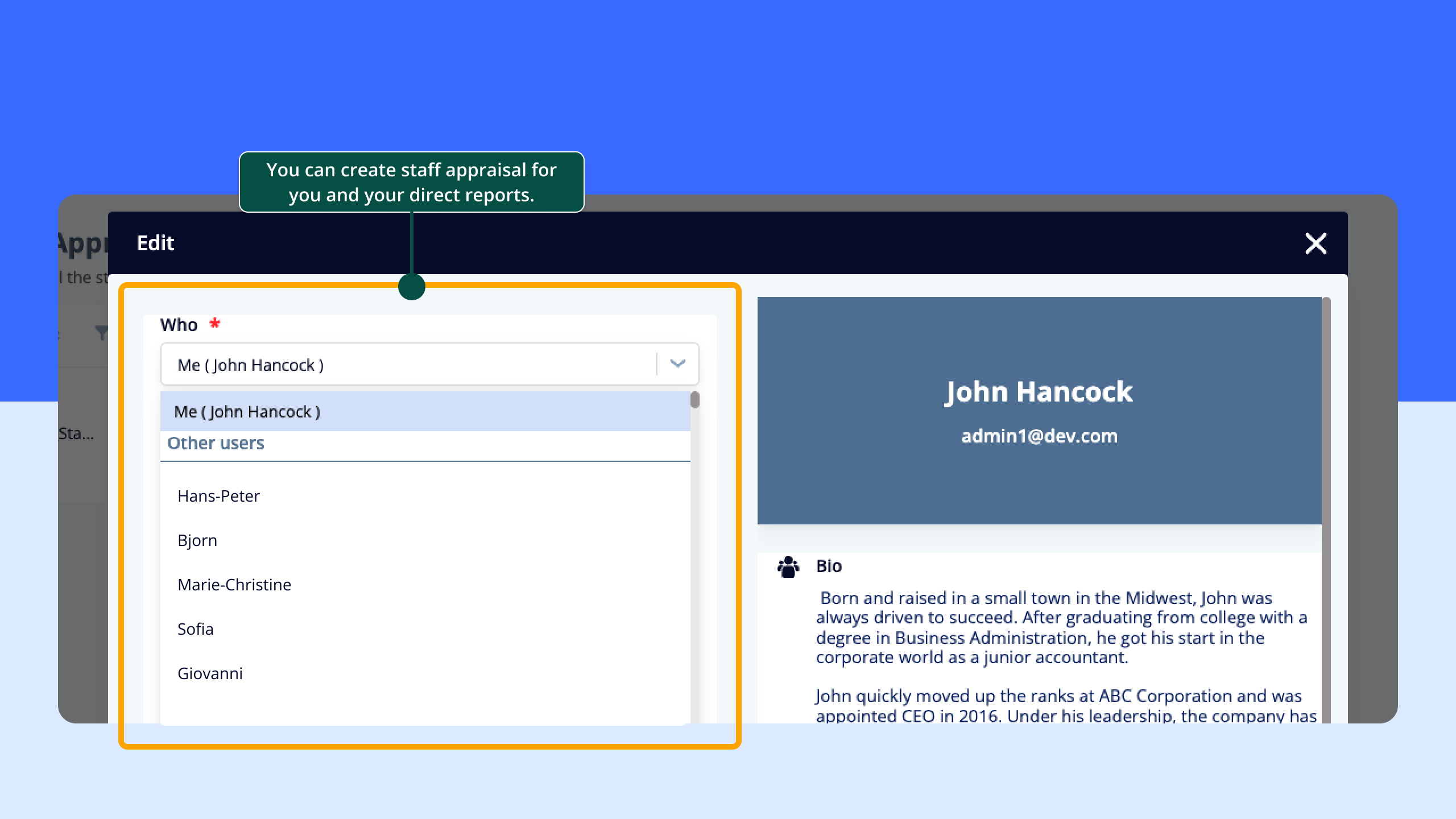
Form:The "Subject" field shows all users.
User
Can create:
✅ Staff appraisals for themselves
✅ Staff appraisals for people who have them as "Manager"
Cannot create:
❌ Staff appraisals for other people
Form:The "Subject" field shows only:
Yourself
Users who have you as their "Manager"
What happens if I try to create an appraisal for the wrong person?
If you try to create a staff appraisal via API or manipulation for someone you don't have permission for, you'll get the error message:
"Not Authorized"
Editing staff appraisals
Administrator, Owner, Editor
Can edit:
✅ All staff appraisals
✅ No restrictions
User
Can edit:
✅ Staff appraisals where you are the "Subject"
✅ Staff appraisals for people who have you as their "Manager"
✅ Staff appraisals where you are the "Appraising Manager"
Cannot edit:
❌ Staff appraisals for other people
❌ The "Who" field (Subject) - this is always disabled for the User role
Technical note:Same logic as for creating. If you try to edit an appraisal you don't have access to, you'll get:
"Not Authorized"
Archiving staff appraisals
Administrator, Owner, Editor
Can archive:
✅ All staff appraisals
User
Can archive:
✅ Staff appraisals where you are the "Subject"
✅ Staff appraisals where you are the "Appraising Manager"
✅ Staff appraisals for people who have you as their "Manager"
Cannot archive:
❌ Staff appraisals where you are not involved in any of the above ways
Important:Users can archive based on three conditions:
They are the Subject of the appraisal
They are the Appraising Manager of the appraisal
They are the direct manager of the person the appraisal is about
Example:
Lisa is manager of Anna (Anna has "Manager" = Lisa)
Karl conducts a staff appraisal with Anna (Karl is "Appraising Manager")
Lisa (with User role) CAN archive the appraisal (she is Anna's direct manager)
Anna (with User role) CAN archive the appraisal (she is the "Subject")
Karl (with User role) CAN archive the appraisal (he is the "Appraising Manager")
David (with User role) CANNOT archive the appraisal (he's not involved)
Both can view, create, edit, and archive all staff appraisals.
Q: Can I see staff appraisals for my direct reports' direct reports?
A: No, not if you only have the User role. The system only checks direct reporting relationships.
Example:
You are manager of Erik
Erik is manager of Anna
You can see Erik's staff appraisals
You CANNOT see Anna's staff appraisals
Solution:Assign yourself the Owner or Editor role if you need to see all staff appraisals in the hierarchy.
Q: What happens if I change a user's "Manager" field?
A: Permissions are updated immediately:
Scenario:
Anna has "Manager" = Erik
Erik can see Anna's staff appraisals
You change Anna's "Manager" to Lisa
Erik can no longer see Anna's staff appraisals
Lisa can now see Anna's staff appraisals
Important: Existing staff appraisals are not affected, but access to them changes.
Q: Can I have multiple managers?
A: No. The "Manager" field can only contain one person. If you need matrix organization or multiple reporting lines, consider using Owner/Editor roles for those who need broader access.
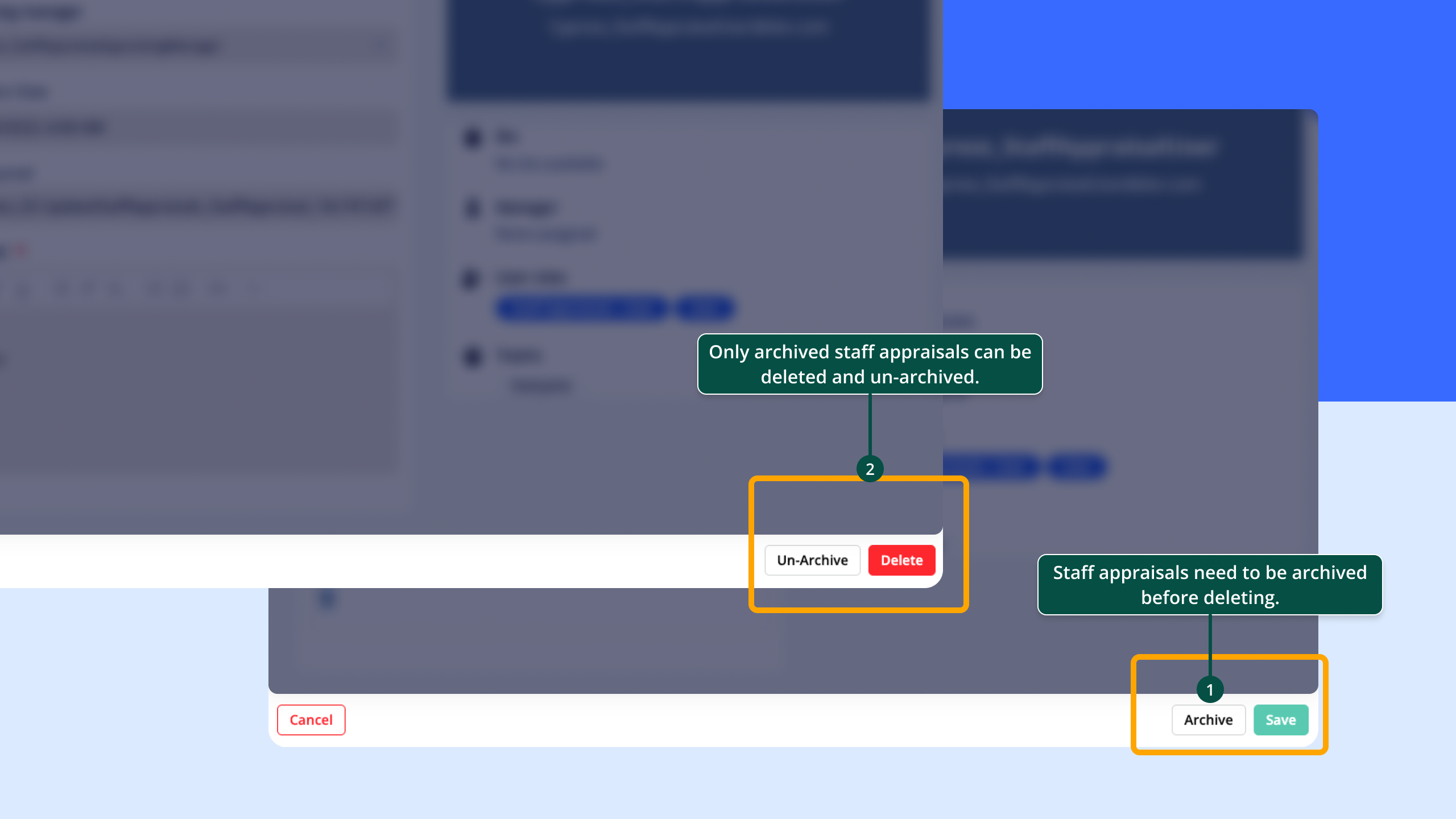
Q: Why can't I delete a staff appraisal?
A: Only users with the Administrator role can delete staff appraisals, and only if they are first archived.
Process:
Archive the staff appraisal
Log in as Administrator
Delete the archived staff appraisal
Owner, Editor, and User cannot delete staff appraisals.
Q: Can I assign multiple roles simultaneously?
A: Yes. A user can have multiple roles, e.g., both User and Editor.
Behavior:The system always grants the highest permissions.
Example:
Anna has roles: User, Editor
Editor grants full access
Anna can see all staff appraisals (not just her own + direct reports)
Role hierarchy:
Administrator (highest)
Owner / Editor (equal)
User
No role (lowest)
Q: What happens if I don't have any role?
A: You cannot use the staff appraisals feature at all. The list displays as empty and you get no error message - the system simply shows no appraisals.
Q: Can the "Appraising Manager" be someone other than my actual manager?
A: Yes, absolutely. "Appraising Manager" is an optional field in the staff appraisal and can be anyone.
Use cases:
Matrix organization
Project manager conducts appraisal
HR conducts appraisal
External consultant conducts appraisal
"Appraising Manager" only affects who can archive the appraisal (if they have the User role).
Troubleshooting
Problem: I cannot see any staff appraisals
Possible causes:
1. You have no role
✅ Solution: Ask an administrator to assign you one of the roles (User, Editor, or Owner)
2. You have the User role but no direct reports
✅ Check: Go to Settings > Users and search for users who have "Manager" set to you
✅ Solution: If you're not a manager and don't have your own staff appraisals, the list is empty (correct behavior)
3. The feature is not enabled for your organization
✅ Check: Ask an administrator if "Staff Appraisals" is enabled under Settings > Organization
✅ Solution: Ask an administrator to enable the feature
Problem: I cannot create a staff appraisal for a specific person
Possible causes:
1. You have the User role and the person doesn't report to you
✅ Check: Go to Settings > Users > Search for the person > Check the "Manager" field
✅ Solution:
If you should be the person's manager: Update "Manager" to you
If not: Ask an Owner/Editor/Administrator to create the appraisal
2. The person doesn't exist in the system
✅ Check: Go to Settings > Users and search for the person
✅ Solution: Create the user first
3. The person is archived/inactive
✅ Check: Go to Settings > Users and check if the user is active
✅ Solution: Activate the user
Problem: I cannot edit an existing staff appraisal
Possible causes:
1. You have the User role and the appraisal is not for you or your direct reports
✅ Check: Open the staff appraisal and see who the "Subject" is
✅ Check: Go to Settings > Users and see if the person has you as "Manager"
✅ Solution: Ask an Owner/Editor/Administrator to edit the appraisal
2. The staff appraisal is archived
✅ Check: See if the staff appraisal is marked as archived
✅ Solution: Unarchive the staff appraisal first (requires appropriate permissions)
Problem: I cannot archive a staff appraisal
Possible causes:
1. You have the User role and are not involved in the appraisal
✅ Check: Open the staff appraisal and see:
Are you the "Subject"?
Are you the "Appraising Manager"?
Are you the direct manager of the "Subject"?
✅ Solution: If none of these apply, ask an Owner/Editor/Administrator to archive
2. The staff appraisal is already archived
✅ Check: See if the staff appraisal is already marked as archived
✅ Solution: No action needed
Problem: I cannot delete a staff appraisal
Possible causes:
1. You are not an Administrator
✅ Check: Go to Settings > Users > Search for yourself > Check roles
✅ Solution: Ask an Administrator to delete the staff appraisal
2. The staff appraisal is not archived
✅ Check: See if the staff appraisal is archived
✅ Solution: Archive first, then delete
Problem: A manager can see staff appraisals for the wrong people
Possible causes:
1. The manager has the Owner or Editor role
✅ Check: Go to Settings > Users > Search for the manager > Check roles
✅ Explanation: Owner and Editor can see all staff appraisals
✅ Solution: If the manager should only see their direct reports' appraisals, remove Owner/Editor and assign the User role
2. Wrong people have "Manager" set to the manager
✅ Check: Go to Settings > Users and filter for people where the manager is set as "Manager"
✅ Solution: Correct the "Manager" field for those people
Problem: I don't see staff appraisals for my direct reports' direct reports
This is correct behavior.
The User role only provides access to direct reports, not the entire reporting chain.
Solution if you need to see all:
Ask an administrator to assign you the Owner or Editor role
Problem: After changing "Manager", the old manager still sees the staff appraisal
This should not happen - contact support.
Permissions are calculated dynamically with each request. If the old manager still sees the staff appraisal:
Verify that you actually saved the "Manager" change
Ask the old manager to log out and log back in (cache issue)
Check that the old manager doesn't have the Owner/Editor role (then they see everything)
If the problem persists, contact support
Summary
The permission system for staff appraisals combines roles and reporting relationships to protect sensitive personnel information.
Key points:
Administrator can do everything (including delete)
Owner / Editor can view and manage all staff appraisals (but not delete)
User can only view and manage their own appraisals, appraisals for direct reports, and appraisals where they are the appraising manager
Reporting relationship ("Manager") automatically controls User access
Archiving for Users works if you are the Subject, Appraising Manager, or direct manager of the Subject
Deletion requires Administrator role + the appraisal must be archived first
"Who" field cannot be edited by Users - it's disabled for the User role
Best practices:
Use the User role for managers/team leaders who should only manage their team's staff appraisals
Use the Owner/Editor role for HR and personnel who need oversight of all staff appraisals
Keep "Manager" relationships up to date for correct access control
Archive old staff appraisals to keep the list clean (they remain visible to authorized users)
Related content
Other user guides:
Guide: Role management in AmpliFlow
Guide: User administration and profiles
Guide: Organization settings
Knowledge base articles:
How do I create a staff appraisal?
How do I assign roles to users?
What is the difference between archiving and deleting?
Need help?
If you have questions about permission management in staff appraisals:
We are here to help you. Fill out the form below and we will get back to you.
Thank you! We will get back to you as soon as possible.
Something went wrong! Email directly to support@ampliflow.com instead.
By clicking “Accept” you agree to the storage of cookies on your device to improve navigation on the website, analyse the use of the website and assist with our marketing efforts. See our personal data policy for more information.